Handling Amazon S3 CORS Errors: A Simple Guide
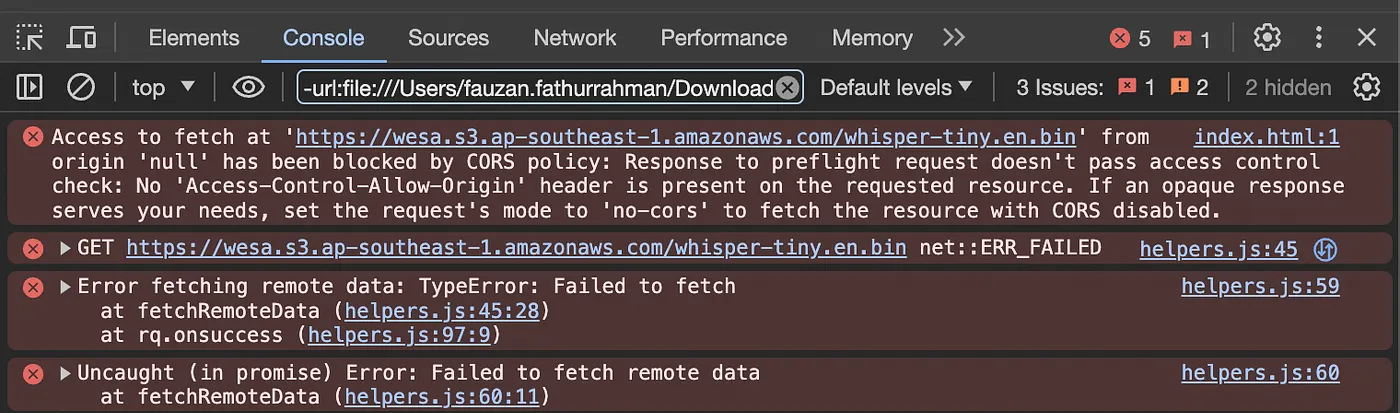
Did you encounter a CORS error while trying to download files from your Amazon S3 bucket? Don’t worry, I’ve got your back. Here’s how to understand and fix S3 CORS errors step by step:
Understanding CORS:
Cross-Origin Resource Sharing (CORS) is a browser security feature that prevents scripts from one domain from accessing resources on another domain. It’s a vital security measure, btw.
The Problem:
You’ll run into CORS errors when your S3 bucket’s CORS configuration isn’t set up properly. These errors pop up when you’re trying to access resources from a different origin or domain (see the above screenshot).
Fixing CORS Errors in Amazon S3:
Here’s how to solve those CORS errors step by step:
-
Head to the AWS Management Console: Log in to your AWS Management Console and find your way to the S3 dashboard.
-
Pick Your Bucket: Select the S3 bucket that’s giving you trouble with CORS.
-
Adjust the CORS Settings: In your bucket’s properties or permissions section, go to the CORS configuration settings.
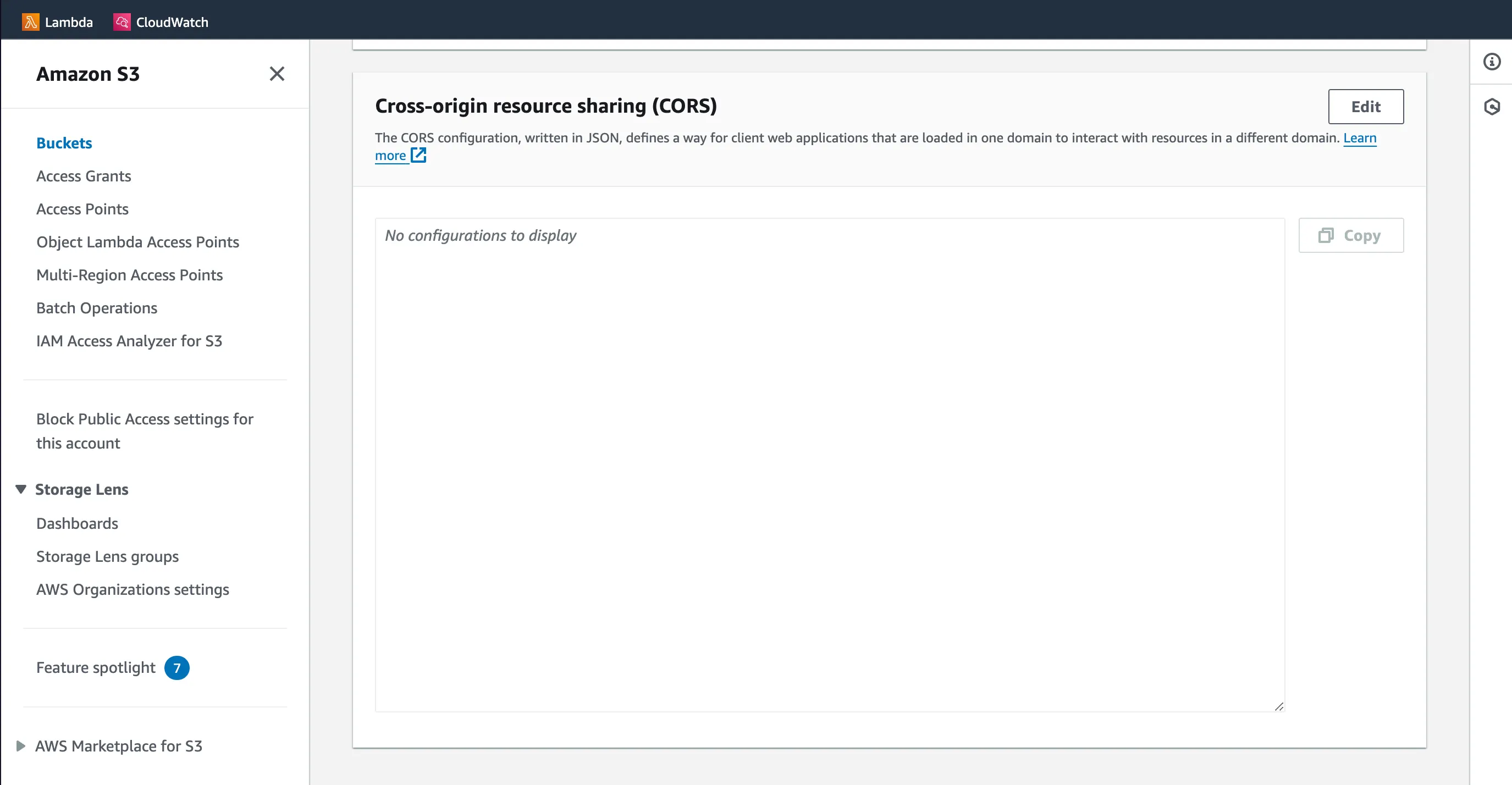
- Add CORS Rules: Add rules that specify which domains can access your bucket’s resources, along with the allowed HTTP methods and headers. Here’s a sample CORS setup:
[
    {
        "AllowedHeaders": ["*"],
        "AllowedMethods": ["PUT", "POST", "DELETE"],
        "AllowedOrigins": ["http://www.your-domain-1.com"],
        "ExposeHeaders": []
    },
    {
        "AllowedHeaders": ["*"],
        "AllowedMethods": ["PUT", "POST", "DELETE"],
        "AllowedOrigins": ["http://www.your-domain-2.com"],
        "ExposeHeaders": []
    },
    {
        "AllowedHeaders": [],
        "AllowedMethods": ["GET"],
        "AllowedOrigins": ["*"],
        "ExposeHeaders": []
    }
]- AllowedOrigins: Specify the domains allowed to make requests.
- AllowedMethods: Define the permitted HTTP methods.
- AllowedHeaders: Specify the allowed headers.
- Save Your Changes: Once you’ve added your CORS rules, save and you’re good to go!