Building a NAS and AI Assistant from a Used Set-Top Box
Sometimes small experiments lead to big results. From an inexpensive device, a mini server was born that now works 24/7 at home.
It Started with Curiosity
A while back, I became interested in trying self-hosting: running my own server at home. It felt exciting to imagine all my data stored on my own device, automation running according to my needs, and not depending on third-party services.
The problem was, as soon as I started looking for hardware, reality hit hard:
- Raspberry Pi - once cheap and accessible, now scarce and expensive
- Mini PC - great performance, but the price made me think twice for just an experiment
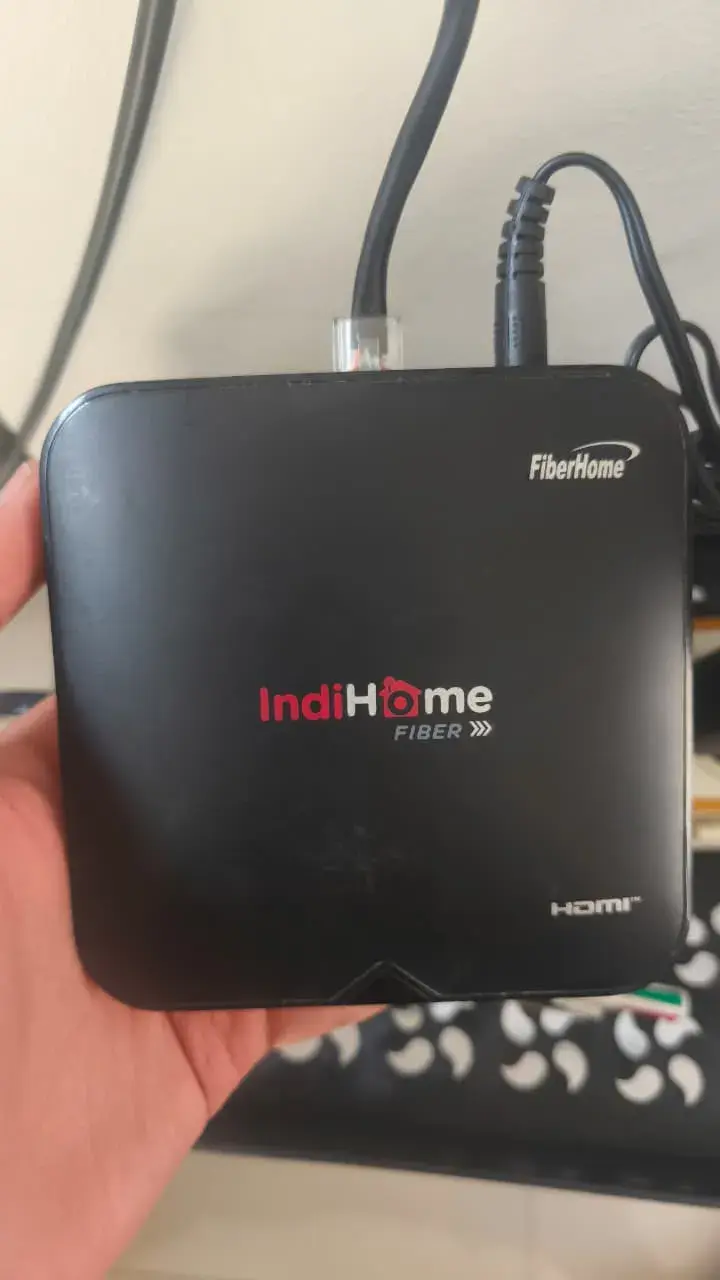
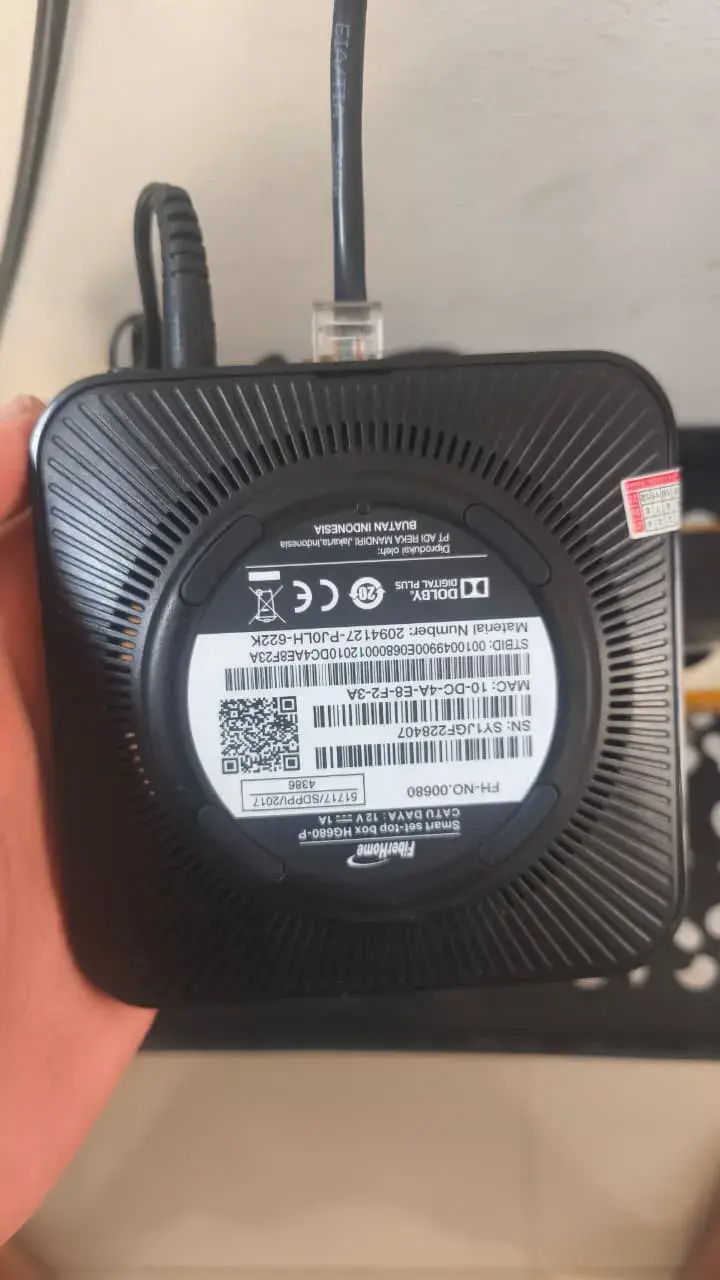
Then one day, I saw a post on a Facebook marketplace: HG680P B860H, a used Android TV set-top box. Small form factor, modest specs, but there was one thing that made me stop scrolling — it had a LAN port.
“If this can be modified into a server, why not try it?”
The price was reasonable. If it failed? At least I’d gain experience and a story to tell.
From Android TV to Linux
Out of the box, this STB could only run Android TV. Great for streaming, but limited for server use. So, first step: replace the OS.
I chose Armbian, a Linux distribution optimized for ARM devices. With Armbian, I had full control via terminal, just like a mini computer.
The steps were straightforward:
- Download the Armbian image for HG680P
- Prepare a 128GB SD Card for the system and initial storage
- Flash the image with
balenaEtcher - Insert the SD card into the STB, power it on, and… boot into Armbian!
At that moment, it felt like “bringing to life” a device that was previously just a media player into a machine ready to work 24/7.
Installing CasaOS
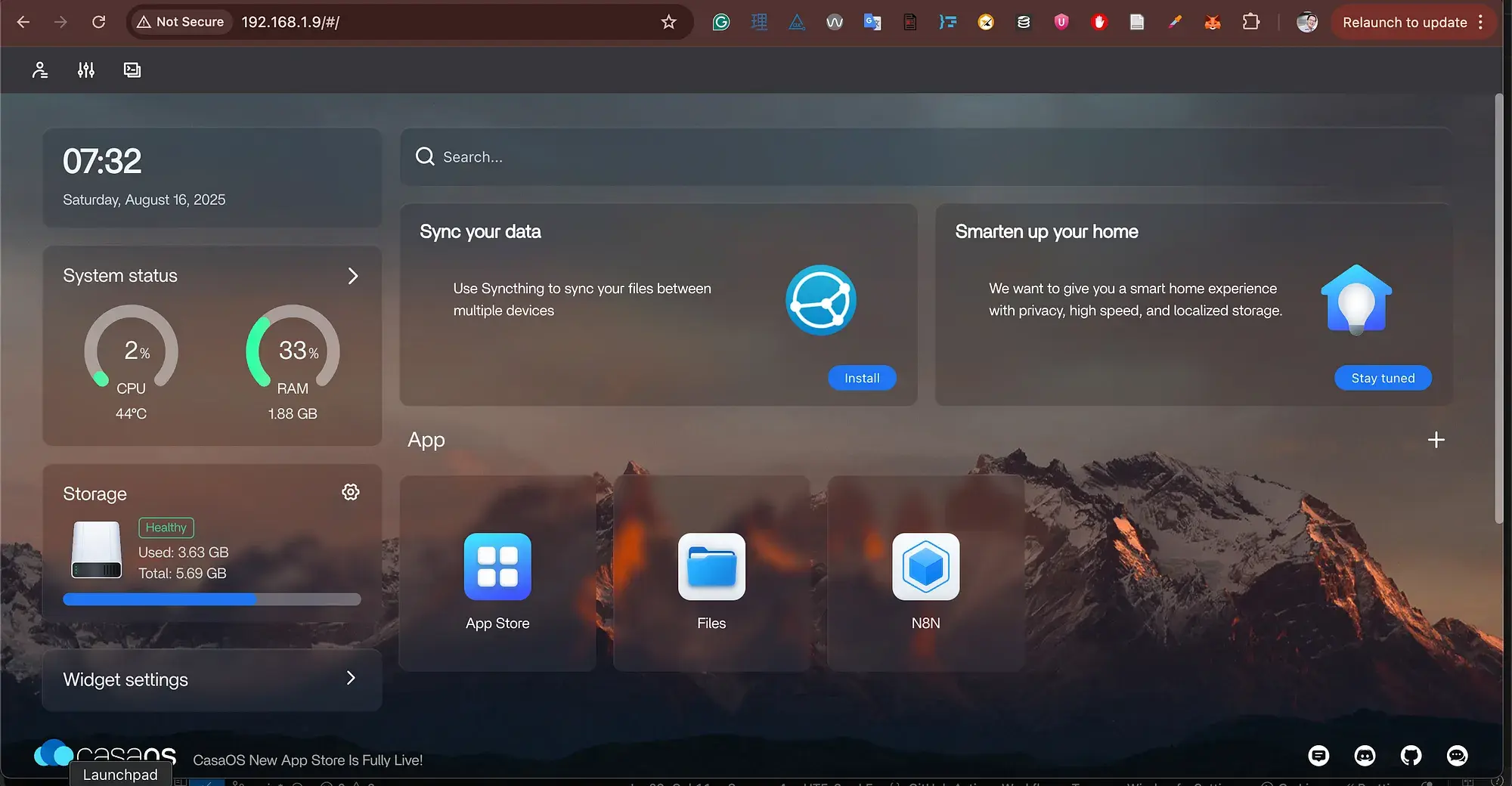
While I was comfortable in the terminal, I wanted a UI interface. My choice fell on CasaOS, a web dashboard for home servers and small NAS setups.
With CasaOS, I could:
- Install applications via the App Store
- Monitor CPU, RAM, and storage
- Access files directly through the browser
The installation was quick, and as soon as I opened the device’s IP address, a clean dashboard greeted me.
Setting Up n8n for Automation
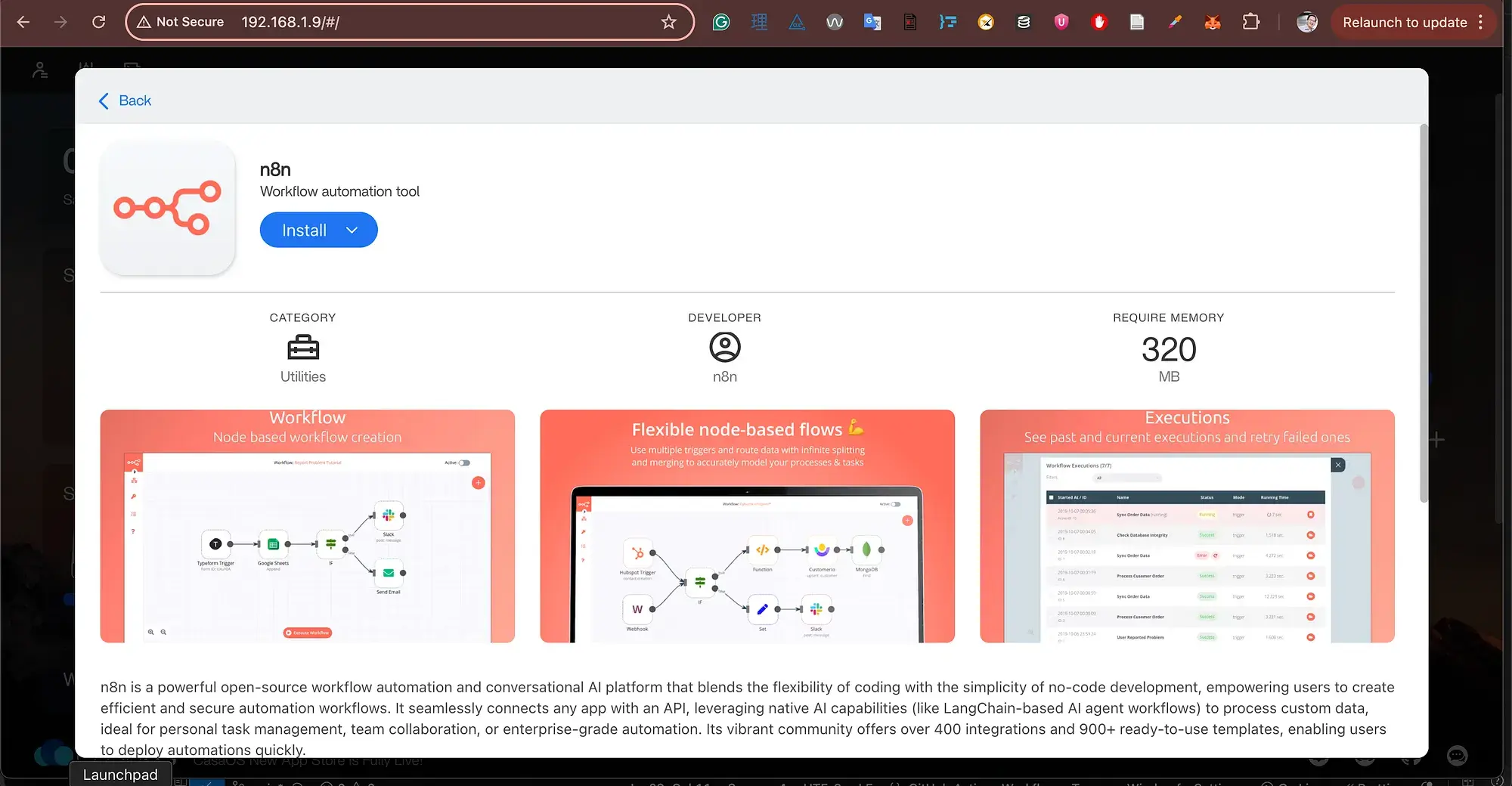
n8n is a flexible automation tool that allows me to create workflows without having to write code from scratch.
In CasaOS, the installation was as simple as:
- Search for
n8nin the App Store - Click Install
- Wait a few minutes, then open it from the dashboard
First Workflow: Curated AI News
As an initial experiment, I wanted to create something that would immediately provide daily value. The idea that emerged: an AI news summary automatically sent to Telegram every morning.
The flow was simple but effective:
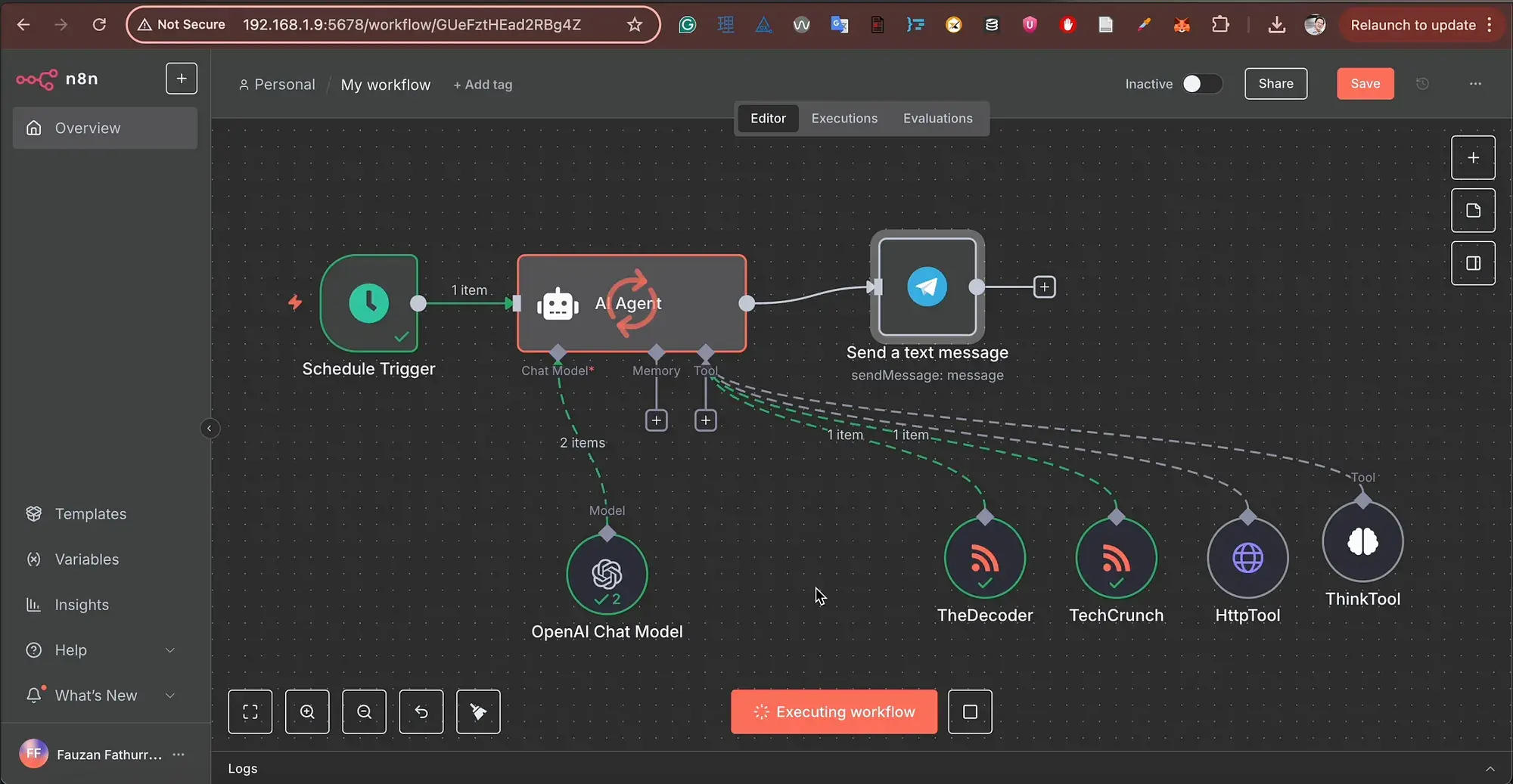
- RSS Node → Fetches the latest AI news from
TheDecoderandTechCrunch. - Function Node → Filters news so only articles published in the last 24 hours make the list.
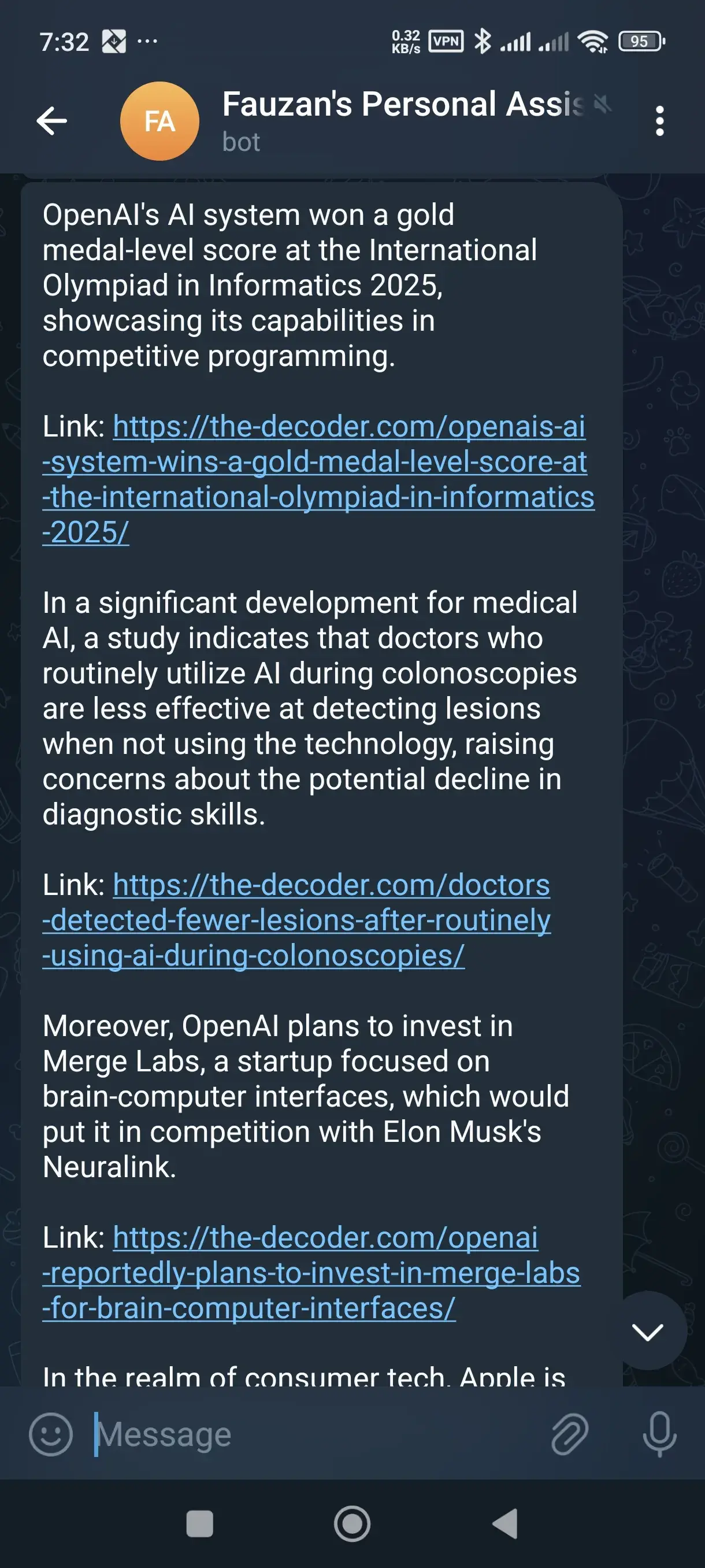
- Telegram Node → Sends the news list to my personal Telegram chat. The format is clean: article title, link, and brief summary.
The result? Every morning I get a notification containing a collection of the latest AI news. No more habit of opening multiple tabs just to find the latest updates — just open one chat, everything is already curated.
This workflow is simple, but it immediately saves time and ensures I don’t miss important information in the field I’m interested in.
New Possibilities Unlocked
After the first workflow succeeded, it felt like opening a door to a room full of new tools. Suddenly, other ideas began to emerge, and I realized this small device could do far more than I initially planned.
Some ideas I started thinking about:
-
Automatic Work File Backup - Set
n8nto monitor certain folders on my main NAS, then periodically make copies to Google Drive. -
Public Data Scraper -
n8npulls data from specific sites — for example, product prices on marketplaces, event schedules, or specific news — then saves it in spreadsheet or database format. From there, I can create automatic analysis or reports. -
Smart Home Control Dashboard - Connect this STB to smart home devices via API or MQTT broker, then create a simple UI interface to monitor room temperature, turn on lights, or control other devices.
-
Automatic Reminders - For example, pulling calendar data, combining it with weather data, then sending morning notifications with a schedule summary and weather forecast.
Lessons from This Experiment
From this process, I gained several important notes — some technical, some related to device usage management:
-
SD Card Works for Starting, but External HDD/SSD is Far More Durable
The 128GB SD card I used was sufficient for installation and initial experiments. But for long-term use, especially if workflows start storing large data or making routine backups, an external SSD/HDD will be much safer from damage risk and have stable read-write speeds.
-
2GB RAM is Enough for Light Applications
With this much RAM, the STB can run
n8n, file manager, and several background processes without problems. However, running heavy applications or multiple containers simultaneously will clearly cause performance degradation. This means I must selectively choose which applications to run and optimize workflows to avoid burdening RAM. -
Monitor Performance to Keep the Server Running Smoothly
Regularly checking CPU, RAM, and storage usage is important. In CasaOS, this information can be seen from the dashboard. For more detail, I usually enter the terminal and use
htoporiotopto see active processes. -
Backup n8n Workflows Regularly
n8nworkflows are stored in a specific data folder. I created a weekly backup schedule for this folder to my main NAS. That way, if the SD card fails or the system needs to be reinstalled, I can restore all workflows without having to create them from scratch.
From a simple experiment, I now have a small digital assistant that’s always on standby. The HG680P B860H that was once just an STB now works tirelessly. Who knows, maybe old devices in your home can also have a new story.